
How-to
How to view Claude Code chat history
View Claude Code chat history: claude --continue, --resume and the /resume picker, jq one-liners for the JSONL files, and searching every project in VS Code.
Builds Claude Code and Codex Assist
- Published
- Updated
- Data as of
- Reading time
- 9 min read
TL;DR: To get yesterday's conversation back, run claude --continue in the same folder, or claude --resume and press Ctrl+A to pick from every project. The picker filters by title, not by what was said. To find a session by its content, grep the JSONL files in ~/.claude/projects/ or search ~/.claude/history.jsonl for a prompt you typed, then resume by ID. Sessions older than 30 days are deleted by default, so raise cleanupPeriodDays if you want them kept.
How to view Claude Code chat history#
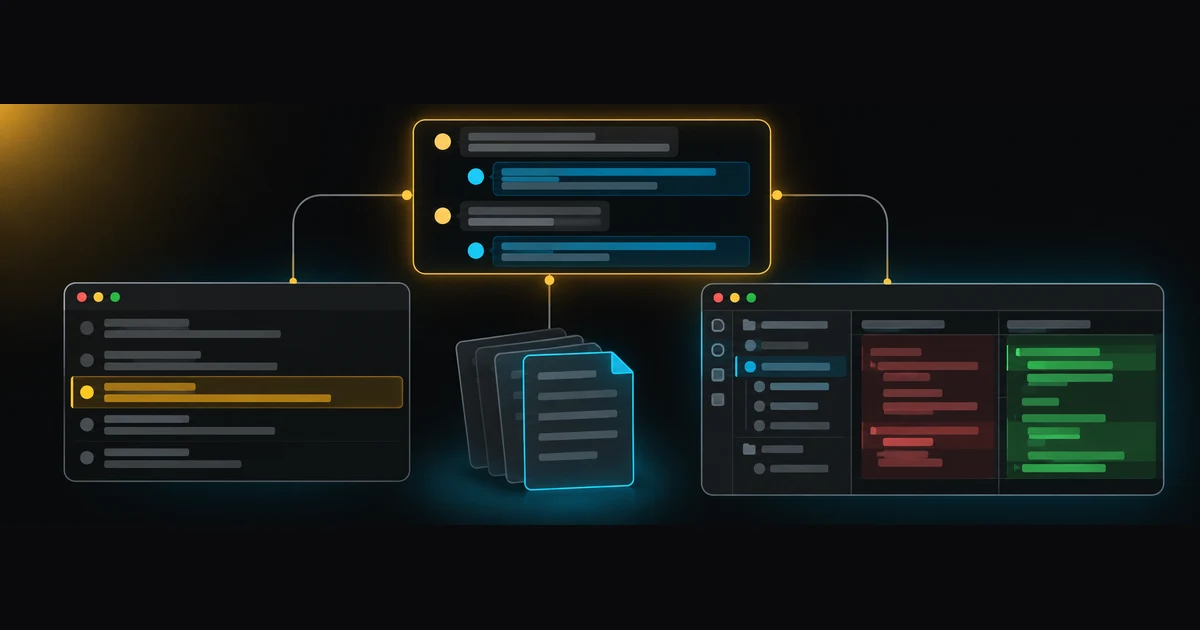
Claude Code saves every conversation on your machine as it happens, one file per session. You have three ways back into it:
- The built-in picker (
claude --resumeor/resume). Best when you want to keep working in that session. - The session file itself (
~/.claude/projects/…/<session-id>.jsonl). Best when you remember a word but not which session it was in. - A viewer. Best when you want to read and search history across projects, see the diffs, or keep sessions past the cleanup.
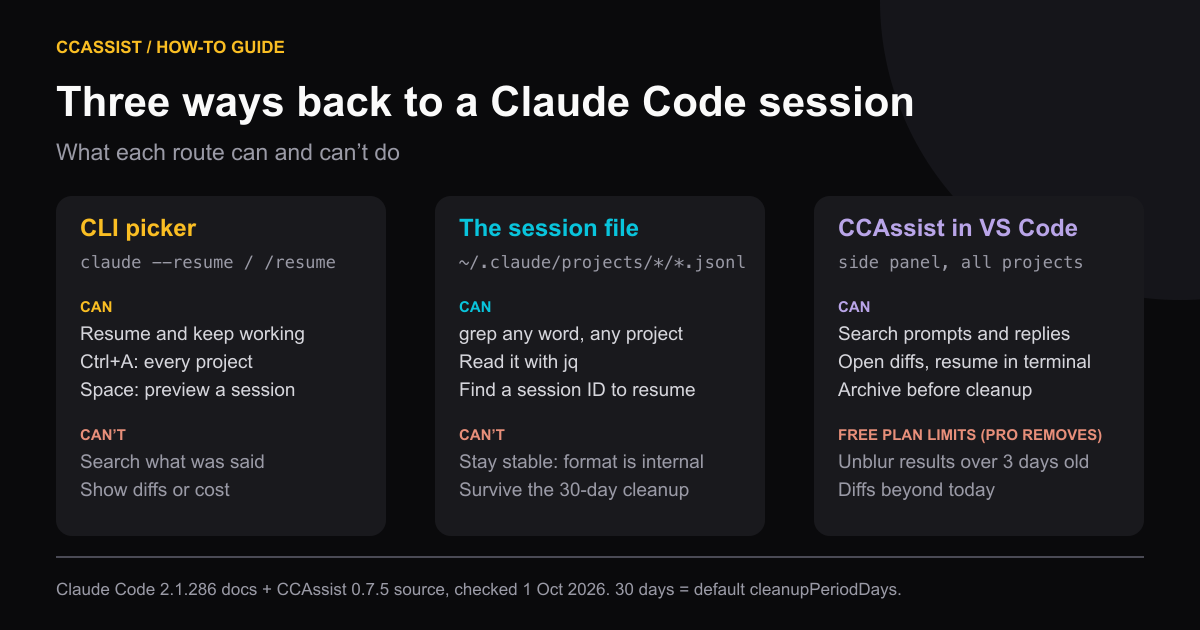
Everything below was checked on Claude Code 2.1.286 (1 October 2026) against the session docs.
Resume the last session with claude --continue#
If you were in the same folder yesterday and did nothing since, this is the whole answer:
cd ~/code/my-app
claude --continue # or: claude -c--continue reopens the most recent conversation in the current directory. It skips sessions started with claude -p, the Agent SDK, and sessions whose first prompt was /loop. If the most recent one is still running in the background, Claude Code exits with a message and the session ID instead of attaching.
A resumed session brings back the full history, including tool calls and results, and continues on the same model where it can. It doesn't bring back every launch flag. If the session needed --mcp-config, --settings, --add-dir or --plugin-dir, pass them again.
Pick an older session with claude --resume or /resume#
claude --resume (or claude -r) with no argument opens the session picker. Inside a running session, /resume opens the same picker and switches you over without quitting.
The keys that matter:
| Key | What it does |
|---|---|
↑ / ↓ | Move between sessions |
Space | Preview the highlighted session's content |
Enter | Resume it |
Any letter, or / | Filter the list |
Ctrl+A | Show sessions from every project on this machine (press again to go back) |
Ctrl+W | Show all worktrees of this repository |
Ctrl+B | Only sessions from the current git branch |
Ctrl+R | Rename the highlighted session |
Each row shows the session's name, or the AI-generated title, with time since last activity, git branch and file size. After Ctrl+A it also shows the project path.
Why can't I see yesterday's session in the picker?#
The picker starts with the current worktree only. If you ran yesterday's session from a different folder, it isn't there until you press Ctrl+A. This is the most common reason people think their history is gone.
When you pick a session from an unrelated project, Claude Code doesn't switch folders for you. It copies a cd … && claude --resume … command to your clipboard. Paste and run it.
Two smaller gaps: sessions started with claude -p or the SDK never appear in the picker, and sessions older than the cleanup period (below) are gone for good.
What does the picker search?#
Typing in the picker filters the list by what each row shows, such as the session name or generated title. You can also paste a GitHub, GitLab or Bitbucket pull request URL to find the session that opened it. The docs don't describe searching message text, so if you remember a phrase Claude said but not the session title, go to the next section.
Resume by name or ID#
Name sessions you'll want back:
claude -n auth-refactor          # at startup
/rename auth-refactor            # inside a session
claude --resume auth-refactor # later, from the same repositoryA session ID works from any directory. Since Claude Code 2.1.223, claude --resume <session-id> checks the current project first, then every other project on the machine. You can also pass the absolute path to a .jsonl file: claude --resume /path/to/<session-id>.jsonl.
Find a session by what you said in it#
Claude Code keeps a second, smaller history file: ~/.claude/history.jsonl. It holds every prompt you've typed, with a timestamp, the project path and (on current versions) the session ID. It is used for up-arrow recall and Ctrl+R prompt search.
Two things make it useful here. Recent entries carry a sessionId, which is exactly what claude --resume needs. And the docs list it under files that are kept until you delete them, so it outlives the 30-day transcript cleanup.
Find the session where you asked about something:
jq -r 'select(.display | test("rate limit"; "i")) | select(.sessionId)
  | "\(.timestamp/1000 | floor | strftime("%Y-%m-%d"))  \(.sessionId)  \(.project)"' \
~/.claude/history.jsonl | tail -5Then resume it from anywhere:
claude --resume 0f3c9a2e-… # the ID from the outputIf Claude Code answers No conversation found with session ID, the transcript has been cleaned up. The prompt survives in history.jsonl; the conversation doesn't. On my machine, history.jsonl went back a full year while transcripts went back 90 days (my cleanupPeriodDays).
Inside Claude Code, Ctrl+R searches the same file interactively, across all projects. It puts an old prompt back in the input box to run again. It doesn't reopen the session it came from.
Read the session files yourself#
Transcripts live at:
~/.claude/projects/<project>/<session-id>.jsonl<project> is the working directory with every non-alphanumeric character replaced by -, so /Users/you/code/my-app becomes -Users-you-code-my-app. Each session also gets a sibling folder holding subagents/ transcripts and large tool-results/. For the full layout, what each file holds and how to move it, see where Claude Code stores conversations.
JSONL means JSON Lines: one JSON object per line. In a session file, lines have a type such as user, assistant, attachment, system or last-prompt. Your prompts are user lines whose message.content is a string or a list of blocks; tool results are also user lines. Claude's text replies are text blocks inside assistant lines.
Anthropic says the format is internal and changes between versions. The commands below worked on 2.1.286 files on 1 October 2026; check them after an upgrade.
One gotcha: project folder names start with -, so ls -t * run inside ~/.claude/projects treats them as flags. Use full paths (as below) or ls -- ….
List recent sessions across all projects#
ls -t ~/.claude/projects/*/*.jsonl | head -10 | while read -r f; do
  printf '%s  %s\n' "$(date -r "$f" '+%Y-%m-%d %H:%M')" \
    "$(grep '"type":"last-prompt"' "$f" | tail -1 | jq -r '.lastPrompt' | cut -c1-70)"
doneThis prints each session's last-modified time and your last prompt in it. The last-prompt line is what current versions write for the picker; older files may not have one.
Find every session that mentions a word#
grep -l -- 'cleanupPeriodDays' ~/.claude/projects/*/*.jsonl | xargs ls -t | headThis matches anything in the file: your prompts, Claude's replies, tool output, file contents it read. The glob skips subagent transcripts; use grep -rl --include='*.jsonl' … ~/.claude/projects to include them. The file name is the session ID.
Print a conversation as readable text#
jq -r '
  if .type == "user" and (.isMeta | not) then
    .message.content
    | if type == "string" then . else (map(select(.type == "text") | .text) | join("\n")) end
    | select(length > 0 and (startswith("<") | not))
    | "\n## You\n" + .
  elif .type == "assistant" then
    .message.content[] | select(.type == "text") | "\n## Claude\n" + .text
  else empty end
' ~/.claude/projects/-Users-you-code-my-app/<session-id>.jsonlIt drops tool calls, tool results and slash-command output (the lines starting with <), leaving the conversation you had. Add > session.md to save it. Inside a live session, /export does the same with tool output included.
List the files a session edited#
jq -r 'select(.type == "assistant") | .message.content[]
  | select(.type == "tool_use" and (.name == "Edit" or .name == "Write" or .name == "MultiEdit"))
| .input.file_path' <session-file>.jsonl | sort -uThis lists files changed through the edit tools only. Files changed by shell commands (sed -i, cat > file) don't show up.
Keep sessions longer than 30 days#
Claude Code deletes transcripts older than cleanupPeriodDays, which defaults to 30 days. Once a transcript is gone, neither the picker nor --resume can bring it back. To keep a year, add this to ~/.claude/settings.json:
{
  "cleanupPeriodDays": 365
}The minimum is 1; 0 is rejected. The sweep also removes the session's subagent transcripts and file-history snapshots. The details, and how to back sessions up before they go, are in where Claude Code stores conversations.
Quick reference: which route for which problem#
| You want to… | Use |
|---|---|
| Carry on where you left off, same folder | claude --continue |
| Pick from recent sessions | claude --resume, then Space to preview |
| Find a session from another project | claude --resume, then Ctrl+A |
| Find a session by a prompt you typed | jq on ~/.claude/history.jsonl, then claude --resume <id> |
| Find a session by anything in it | grep -l on ~/.claude/projects/*/*.jsonl |
| Read a session without resuming it | The jq print command above, or a viewer |
| See what a session changed in your files | A viewer with diffs, or git log if you committed |
| Stop sessions disappearing | Raise cleanupPeriodDays |
The official Claude Code VS Code extension has its own Session history list with keyword search. It is a list of that extension's conversations for resuming, not a cross-project history browser.
Where CCAssist fits#
Claude Code and Codex Assist (CCAssist) is a VS Code extension I build that reads the same session files and shows them in a side panel. For this problem, it does four things the picker doesn't:
- Searches what was said, in every project. Search scans prompts and replies directly in the session files. You can limit it to your messages or Claude's replies, match an exact phrase or a regex, and include tool output and subagent transcripts.
- Shows sessions from all projects in one list, grouped by project, with Codex CLI, OpenCode, Grok, Copilot and Cursor sessions alongside if you use them (see the Codex CLI history viewer).
- Opens the conversation with its file diffs, so you can see what each turn changed, and resumes the session in a terminal with one click (it runs
claude -r <session-id>for you). - Archives sessions to
~/.ccassist/archivesso they survive the cleanup, and exports them to Markdown.
What's free and what isn't, from the 0.7.5 source (1 October 2026):
| Free | Pro | |
|---|---|---|
| Session list, all projects | All sessions listed and open | All sessions listed and open |
| Search | All matches listed; matches older than 3 days are blurred | Full results |
| File diffs | Same-day changes | All |
| Archive and Markdown export | 3 sessions each | Unlimited |
Pricing is on the upgrade page. CCAssist doesn't change how Claude Code stores or deletes sessions: if a transcript was cleaned up before you archived it, CCAssist can't recover it either. It only sees sessions saved on this machine, so cloud sessions on claude.ai/code that you never ran locally aren't in the list. For other viewers, including standalone desktop apps, see the best Claude Code VS Code extensions in 2026.
How we checked#
- Claude Code 2.1.286 on macOS, 1 October 2026. Picker keys, scoping, resume-by-ID behaviour and storage paths are from the sessions docs; retention and
history.jsonlfrom the .claude directory docs;Ctrl+Rscope from interactive mode. Version numbers (2.1.223 for cross-project--resume <id>) are from the docs and the Claude Code changelog. - Commands were run against real session files on one machine (42 project folders, 753 top-level session files). Only file shapes and counts were inspected; no session content is quoted here.
- CCAssist claims were checked against the 0.7.5 source and changelog, the version on the VS Code Marketplace on 1 October 2026.
Install Claude Code and Codex Assist from the VS Code Marketplace and you'll see every Claude Code session on your machine, from every project, in a searchable list in the side panel.
Frequently asked questions
- How do I see my previous Claude Code conversations?
- Run claude --resume (or /resume inside a session) to open the session picker. Press Ctrl+A to list sessions from every project, Space to preview one and Enter to resume it. claude --continue reopens the most recent session in the current directory.
- Does claude --resume show sessions from other projects?
- Not by default. The picker starts with the current worktree. Ctrl+W widens it to all worktrees of the repository and Ctrl+A to every project on the machine. Since Claude Code 2.1.223, claude --resume <session-id> also finds a session that started in another project.
- Can I search the text of old Claude Code conversations?
- The picker's search filters the session list by name or title, and finds the session behind a pasted pull request URL. To search what was actually said, grep the JSONL files under ~/.claude/projects/, or use a viewer such as CCAssist that searches prompts and replies across all projects.
- Why did my old Claude Code sessions disappear?
- Claude Code deletes session transcripts older than cleanupPeriodDays, which defaults to 30 days. Raise the value in ~/.claude/settings.json to keep them longer. Deleted transcripts cannot be resumed.
- Where is Claude Code chat history stored?
- In ~/.claude/projects/<project>/<session-id>.jsonl, one JSON Lines file per session, where <project> is the working directory path with non-alphanumeric characters replaced by dashes. CLAUDE_CONFIG_DIR moves the whole folder.
claude-codehistory